Productivity
Issue Reminders in Jira: 12 Use Cases That Stop Work Falling Through the Cracks
Jira is excellent at recording what needs doing. It is famously bad at tapping you on the shoulder when the moment to do it arrives. An issue sits in “Waiting for customer,” everyone moves on, and three weeks later someone asks why it was never closed. The information was all there: nobody was reminded.
That gap is exactly what issue reminders fill. A reminder is a time-based notification attached to an issue: pick a date and time, optionally repeat it, choose who hears about it, add a note, and the app pings you (or your team) at the right moment, by email, Slack, Microsoft Teams, or Google Chat. This guide is a tour of what they’re genuinely useful for, using the Issue Reminders app for Jira Cloud, with twelve concrete use cases.
The examples below use the Issue Reminders app by TheStarware. It’s a Forge app, so reminder data stays inside your Atlassian instance.
Where reminders live
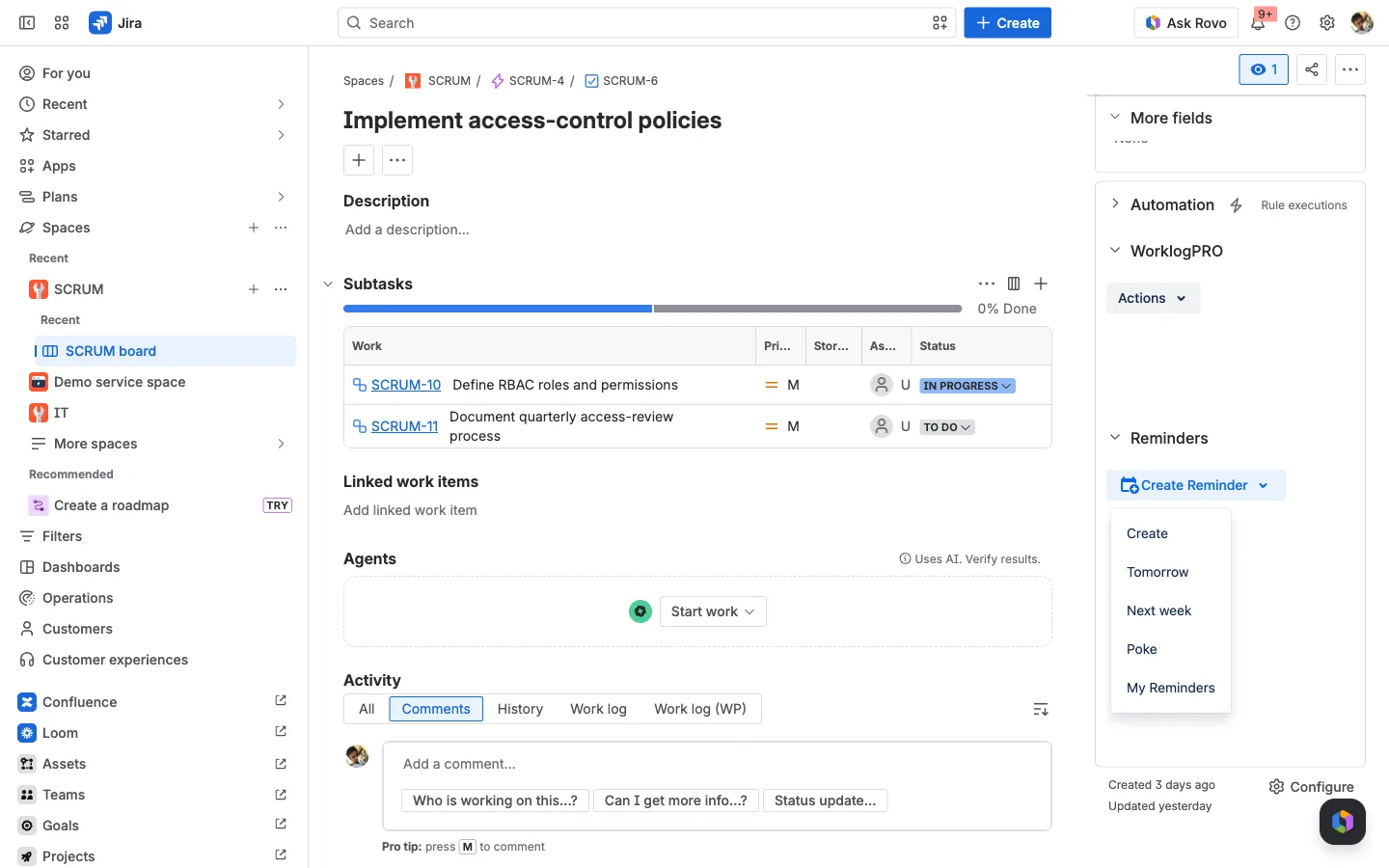
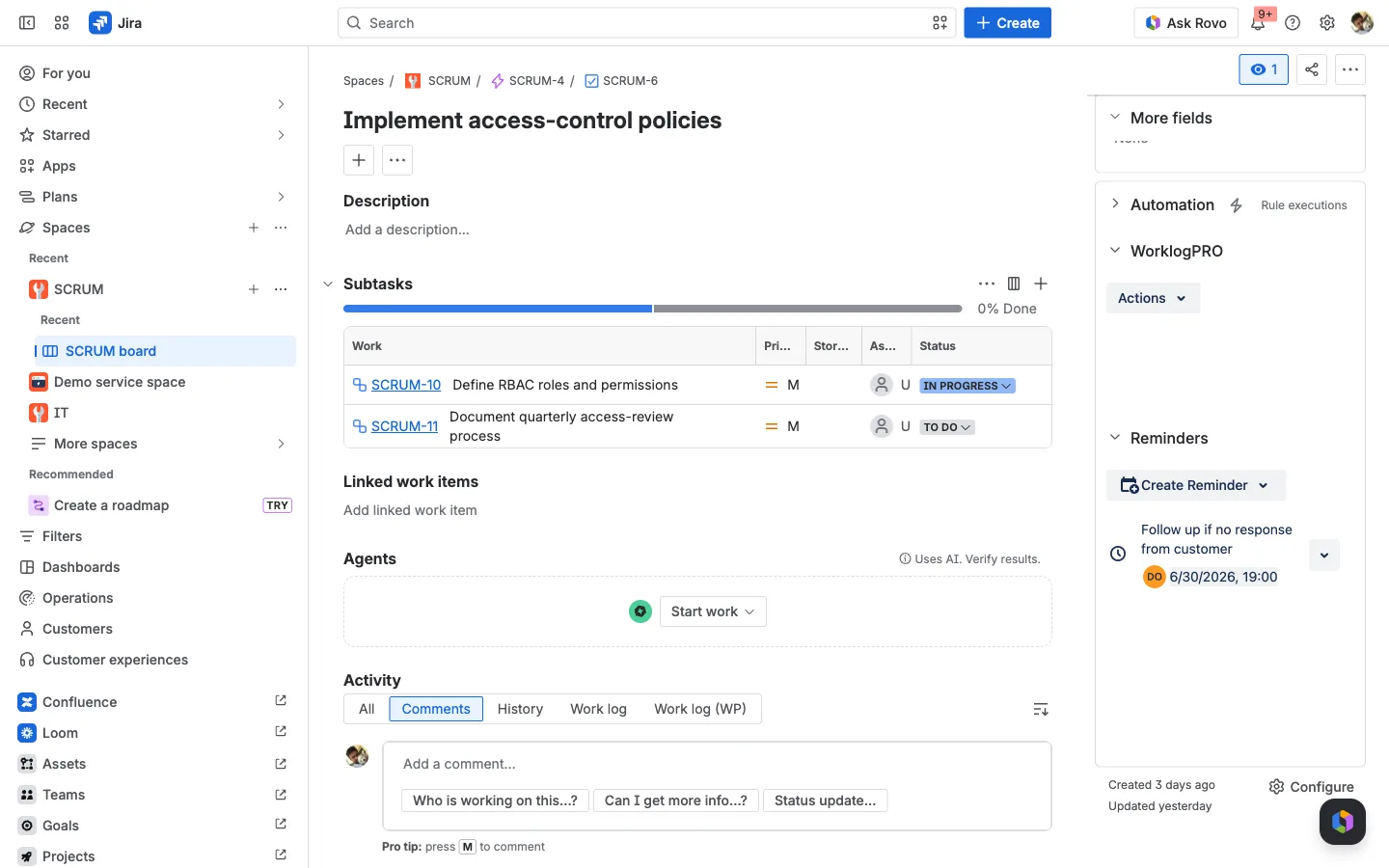
Open any issue and you’ll find a Reminders section in the right-hand panel. Its Create Reminder button has a dropdown of quick options: Create, Tomorrow, Next week, Poke, and My Reminders. These are starting points rather than one-click actions: Tomorrow and Next week pre-fill the date, Poke sends an instant nudge instead of a scheduled one, and either way you finish in the same short form (subject, recipients, message) before it’s sent.
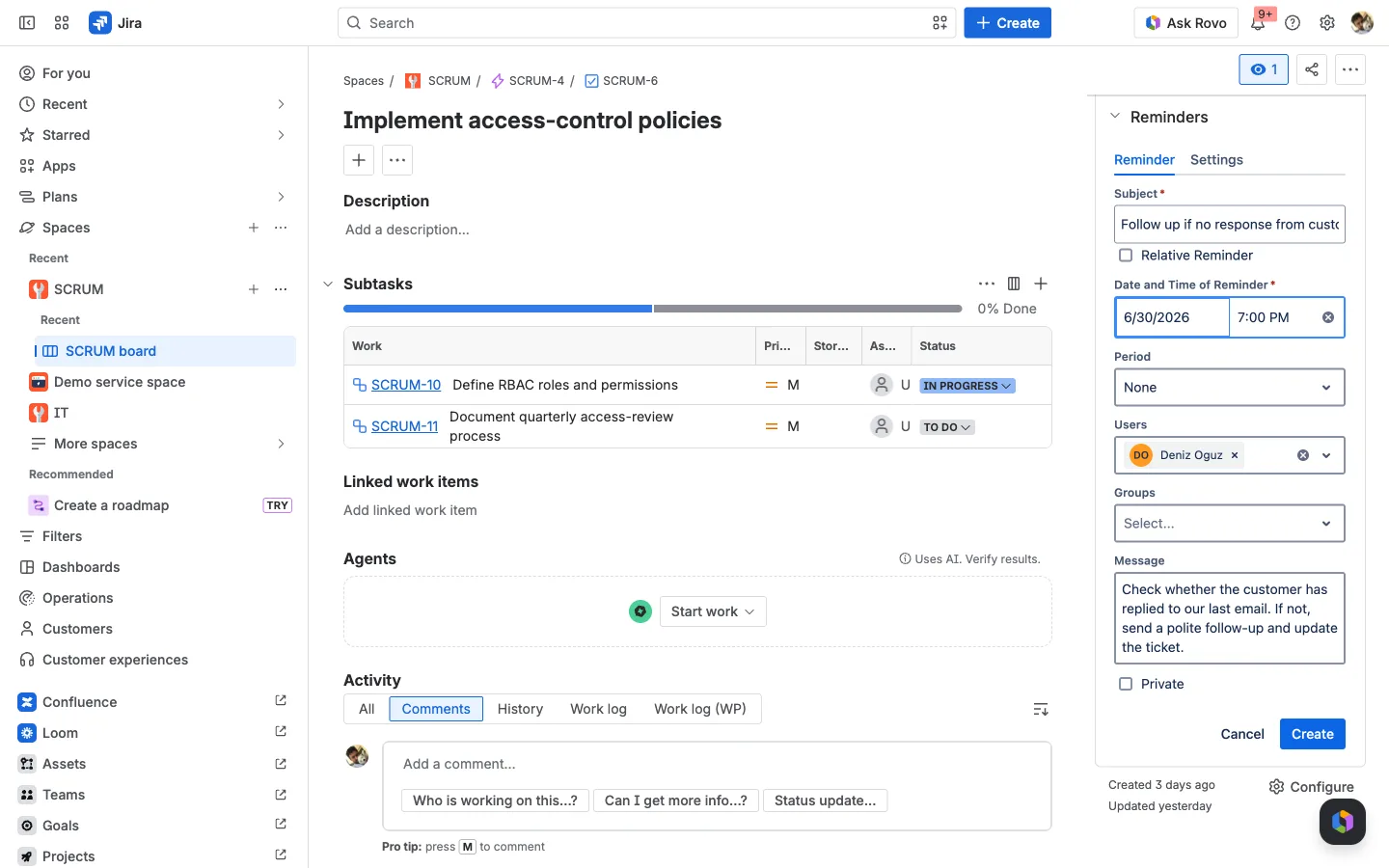
Need more than a quick nudge? Create opens a small form right in the panel: a Subject, the Date and Time, an optional Period to repeat it, Users and Groups to notify, a Message, and a Private toggle.
With that as the toolkit, here’s where it earns its keep.
1. Follow up on a “waiting” issue
The classic. An issue is parked in Waiting for customer, Blocked, or On hold, and without a nudge it’s invisible until it’s late. Set a reminder for a few days out (“Follow up if no response from the customer”) and you’ll be pulled back to it exactly when chasing is due, instead of relying on memory.
2. Don’t miss a due date
Tie a reminder to the deadline that matters. The Relative Reminder option lets you anchor it to an issue’s date field, so you can be reminded two days before the due date rather than picking an absolute date by hand. The deadline moves, the reminder moves with it.
3. Recurring check-ins
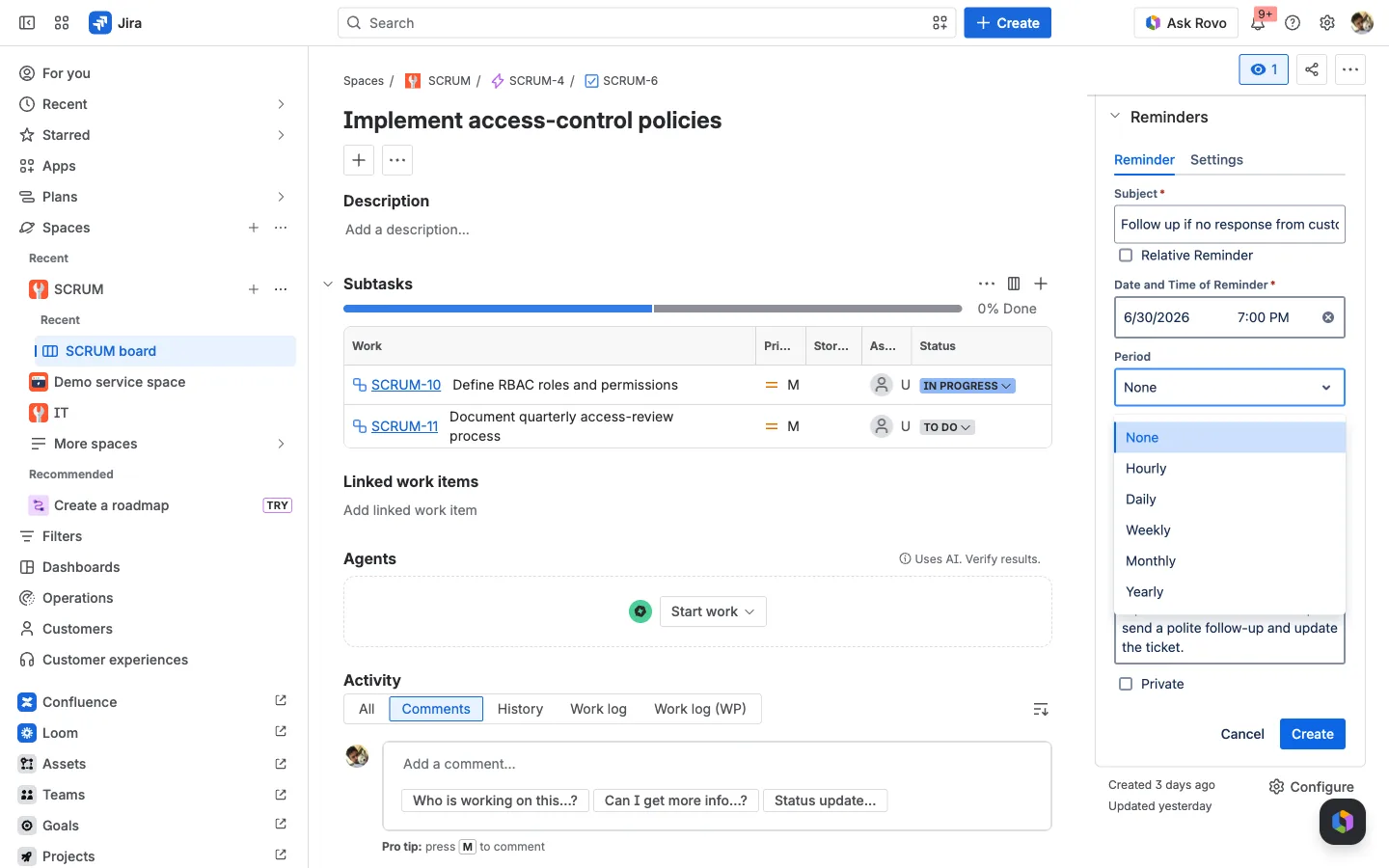
Some work needs a heartbeat, not a one-off. The Period field repeats a reminder hourly, daily, weekly, monthly, or yearly, perfect for a daily triage of a support queue, a weekly review of an epic, or a monthly backlog cleanup.
You can also have a recurring reminder cancel itself when the issue is resolved, so the heartbeat stops the moment the work is actually done.
4. Snooze it for later, or poke it now
Sometimes you just need an issue to come back to you later. The Tomorrow and Next week quick options pre-date a reminder so it resurfaces when you can actually act on it, a snooze button for Jira, no sticky notes required. Poke is the opposite end of the same idea: an instant nudge you fire off now, handy for pinging a colleague the moment something needs their eyes. Both open the same quick form, so you still set the recipient and a note before it goes.
5. Nudge a specific teammate
Reminders aren’t only for yourself. Add another person under Users and the nudge lands on them at the chosen time: “Can you review this before the release?” It’s a gentler, time-correct alternative to pinging someone now and hoping they remember later.
6. Remind a whole group
For shared responsibilities, target a Group instead of a person. A reminder to your Support or QA group means whoever’s on rotation gets it, useful for queue checks, on-call handoffs, or “someone needs to look at this today” situations where the individual isn’t fixed.
7. Sub-task deadlines before a parent release
When a parent issue has a hard date (a release, a freeze, an audit), the sub-tasks underneath it are what actually slip. A reminder a few days ahead (“Finish your sub-tasks before the release branch freeze”) keeps the small pieces from sinking the big deadline.
8. Cross-team handoffs
Work that crosses teams stalls in the gaps between them. Set a reminder for the receiving team timed to when the baton should reach them, so a handoff doesn’t quietly wait in someone’s queue for a week before anyone notices it arrived.
9. Service-desk and customer follow-ups
On a Jira Service Management portal, reminders help close the loop with customers: a nudge to follow up on a Waiting for customer ticket, or to check that a resolved request really did solve the problem. Reminders can be created from the customer portal too, so the follow-up discipline extends to requests, not just internal issues.
10. Compliance, renewals, and periodic obligations
Anything that recurs on a calendar (a quarterly access review, an annual license renewal, a monthly report) is a yearly or monthly recurring reminder waiting to happen. Attach it to the tracking issue and the obligation surfaces on schedule, every time, without living in someone’s head.
11. Automate reminders from your workflow
You don’t have to set every reminder by hand. Issue Reminders adds a Create Reminders workflow post function: when an issue transitions, a reminder is created automatically. Move an issue to In Review and auto-schedule a “still in review?” nudge to the assignee three days later; the recipient can be a fixed user, a group, or a dynamic role like the current assignee or reporter. It turns “we should follow up on these” into a rule that runs itself.
12. Find and audit reminders with JQL
Reminders are also queryable. The app adds JQL functions so you can build filters and dashboards around them, for example, surface every issue with a reminder coming due soon, or every issue a particular person has reminders on:
issuesWithReminders(): issues that have remindersissuesWithReminderDueWithin("2d"): reminders triggering in the next two daysissuesWithReminderForUser(...)/issuesWithReminderForGroup(...): by recipient
That makes reminders a reporting dimension, not just a private nudge.
Managing what you’ve set
Every reminder you create on an issue shows in that issue’s Reminders panel, with a per-row menu to edit or delete it.
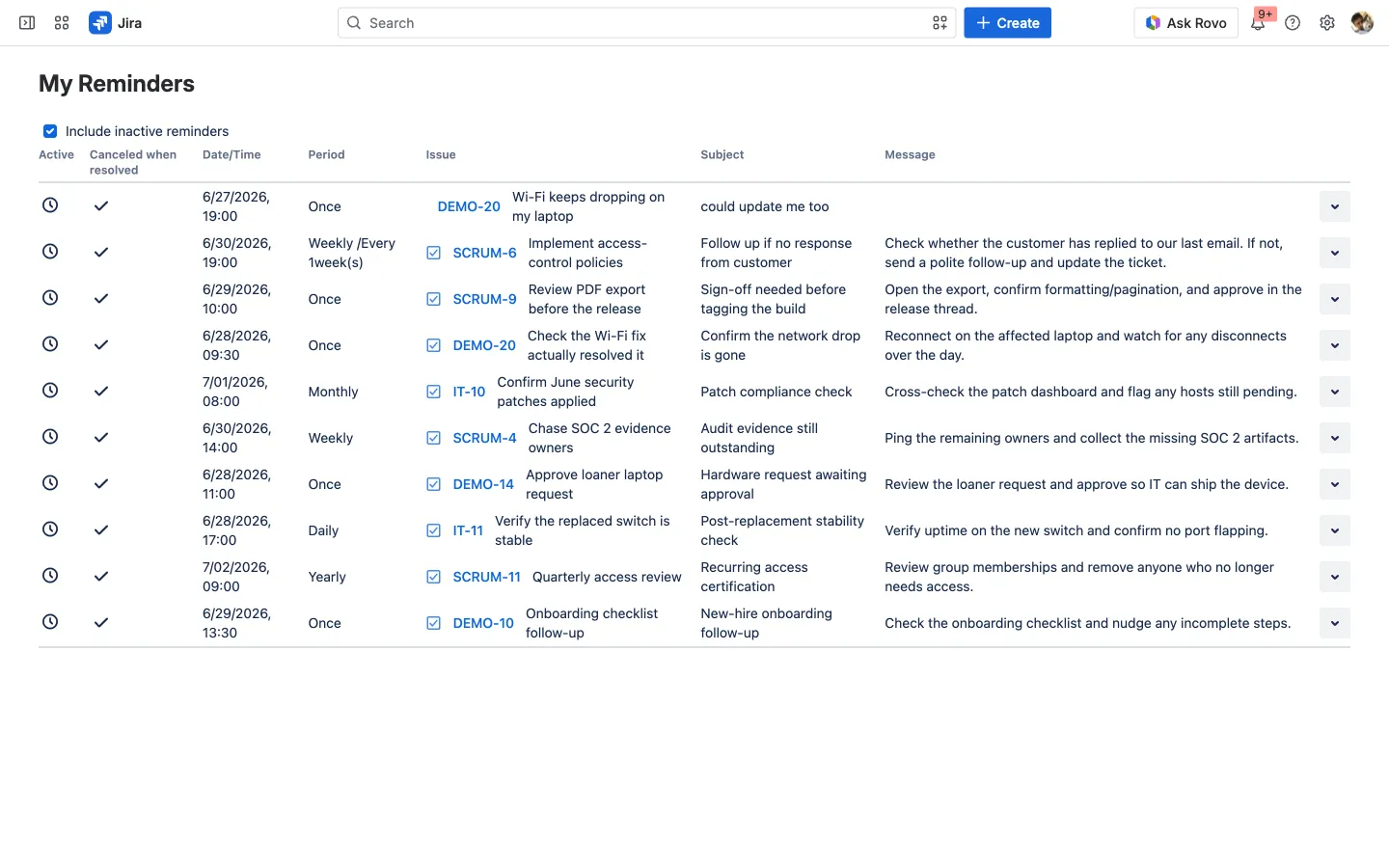
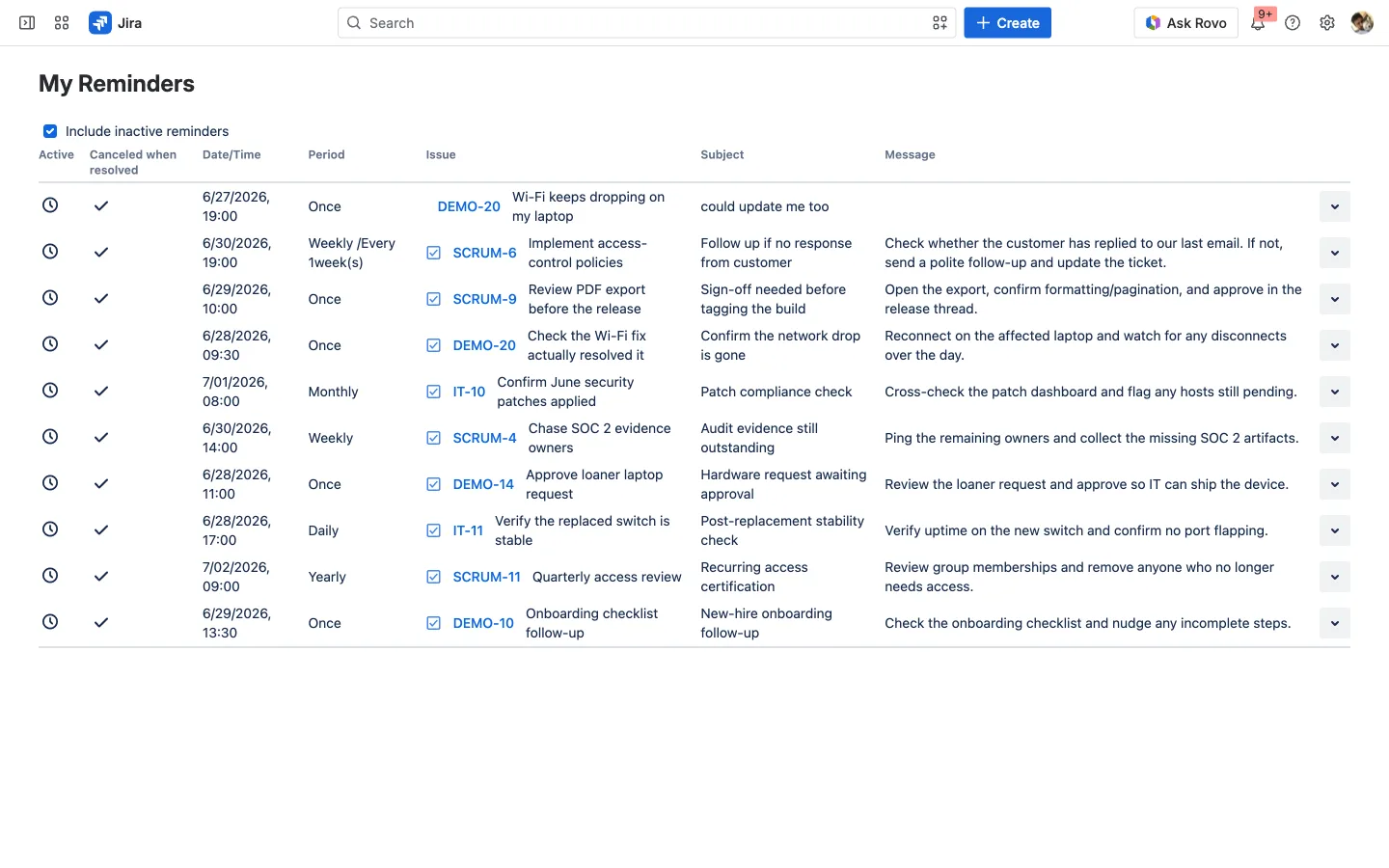
For the bird’s-eye view, the My Reminders page (under Apps in the Jira nav) lists every reminder you’ve created across all issues, with their date/time, period, issue, subject, and message, plus an Include inactive reminders toggle. It’s your single place to see what’s scheduled and tidy up what’s stale.
The pattern behind all twelve
Strip away the specifics and every use case is the same move: attach the right nudge, to the right people, at the right time, to the issue itself, so the prompt to act lives with the work instead of in someone’s memory. Jira already knows what needs doing; reminders are how it finally tells you when.
Try it on your own Jira. Search the Atlassian Marketplace for Issue Reminders, open any issue, and set your first reminder from the Reminders panel, start with the Tomorrow button.