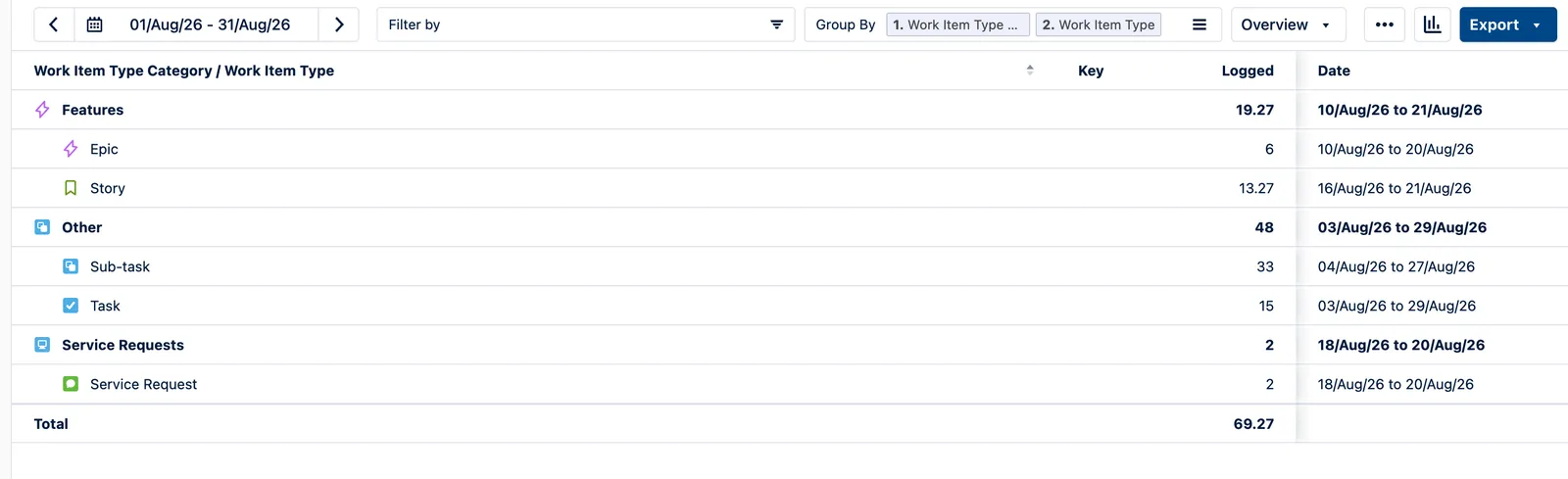
Reporting
How Work Item Type Categories Change Tempo Reports
Jira gives every space its own work item types, and after a few years the list is long. One space calls a defect a Bug, another calls it a Problem, and the service desk files it as IT Help. Each name is correct in its own space.
A Tempo report keeps them apart. Every name gets its own row, so someone adds the rows together by hand to reach a defect total. Add a new type next quarter and that total is wrong again.
Tempo handles this with the work item type category.
What a work item type category is
It is a name you give to a group of work item types. Tempo lists every type from every Jira space in one place, and you group the ones that mean the same thing.
The category belongs to Tempo, not Jira. It does not change your Jira configuration or the work items. It changes one thing: how Tempo groups hours in a report.
Tempo released the feature on 13 February 2025, documented under Categorizing Work Item Types.
One detail to know before you go looking for it: Tempo renamed issue type to work item type, but not everywhere. The settings page URL is still issue-type-categories, and the report still passes groupBy=issueTypeCategory. That does not change how the feature works, but it does make searching harder.
Where to configure the categories
You must have the Tempo Administrator global permission.
Go to Tempo → Settings → Configuration → Work Item Type Categories. The left column shows the category, the right column the work item types in it.
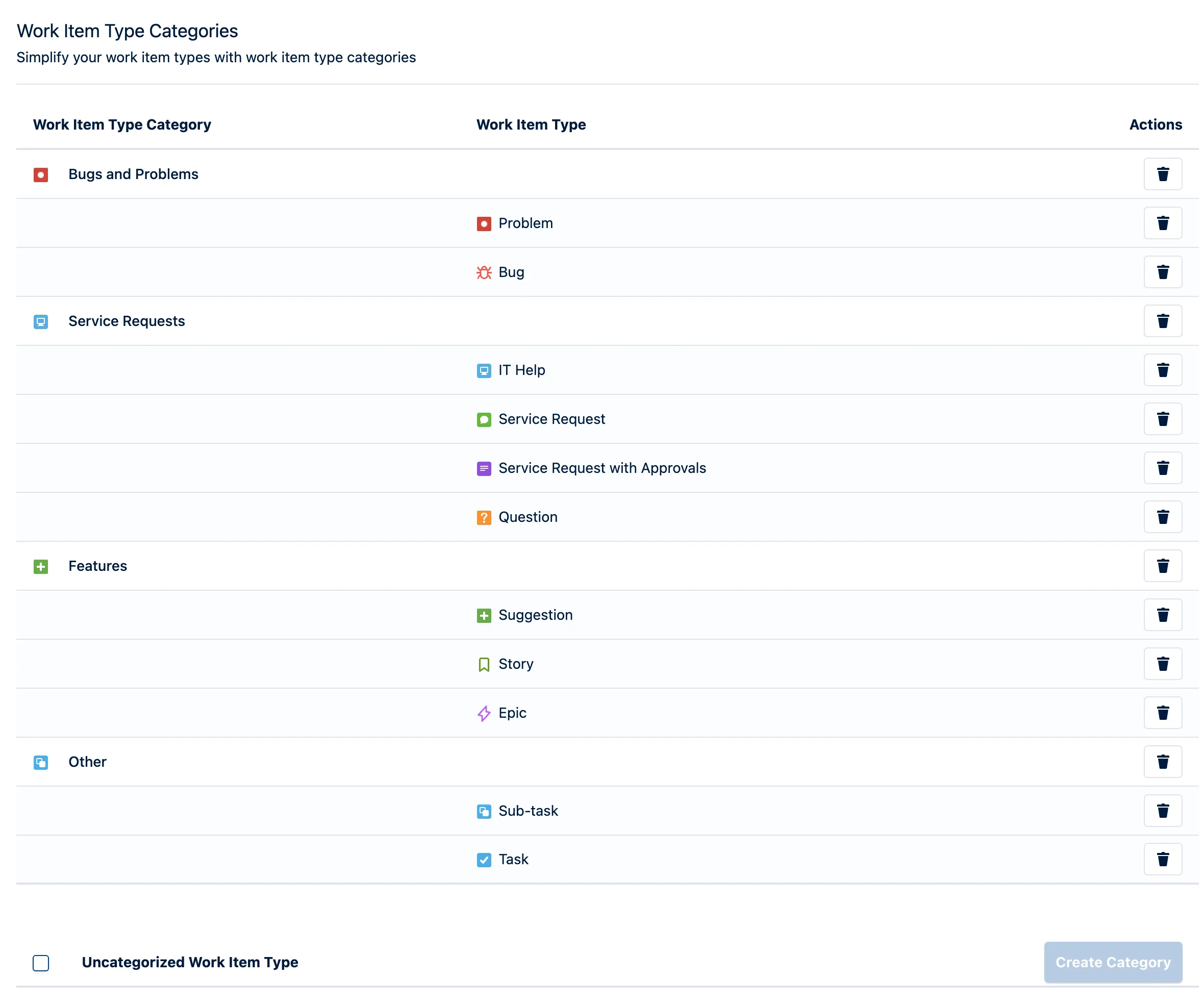
Every work item type appears in the list once. The uncategorized types are listed at the bottom of the page; in the example above that list is empty, because every type has a category.
How to make a category
- Select one or more uncategorized work item types.
- Click Create Category.
- Click the name of the new category and type a better name.
To add more types later, select an uncategorized type. Then open the Add to Category menu and select the category.
To remove one type, click the trash icon in its row. To remove a full category, click the trash icon in the category row. Its work item types become uncategorized again. Tempo does not delete them.
What changes in the report
Open Reports → Logged Time, then open the Group By control.
The group each field belongs to tells you where it comes from. Work Item Type is under Jira Fields, because Jira defines it. Work Item Type Category is under Tempo Fields, because Tempo defines it.
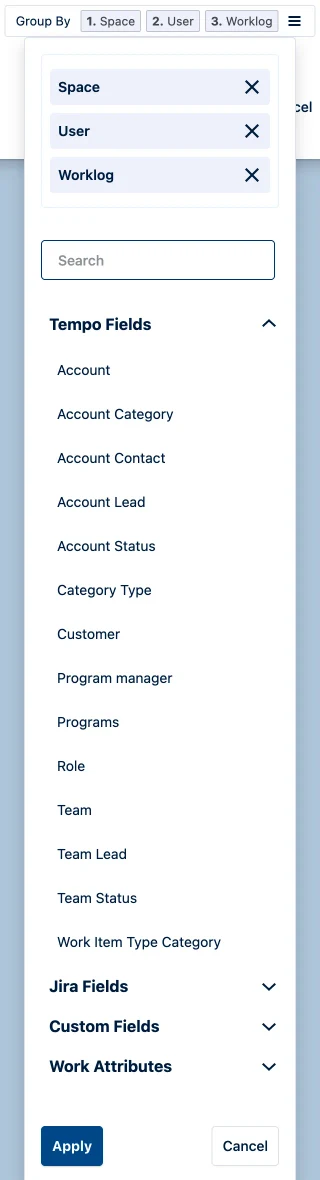
Set the category as level 1 and the work item type as level 2. One table then shows both the summary and the detail.
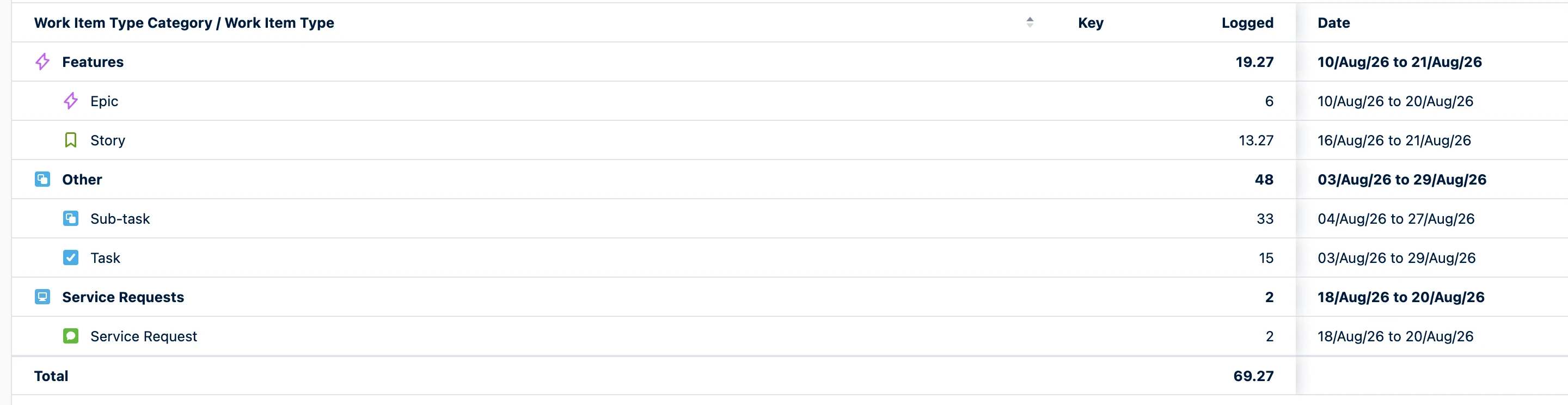
Two smaller behaviours are worth knowing:
- A Logged Time report needs at least two grouping levels. Tempo will not let you remove the last two.
- A work item type with no category still appears in the report, and Tempo still counts its hours.
Three limits
The category is not a filter
The Filter by panel offers Spaces, Teams, Roles, Accounts, Account Categories, Category Types, Customers, Epics, Work Items, Users, Jira filters and Jira labels. That is twelve entries, and no work item type among them.
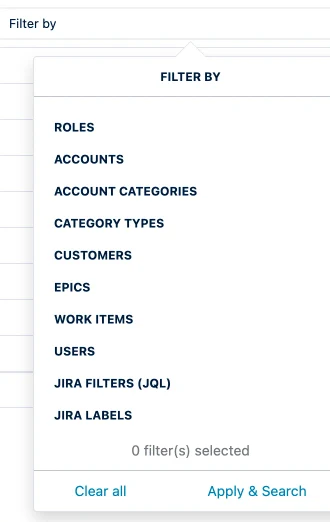
So you can group by it, but you cannot narrow to it. Work Attributes have the same gap: Tempo offers both under Group By, neither under Filter by. It gives no reason for this. The standing request, Group/Filter Report by Worklog Attribute, is marked likely to implement; its grouping half shipped, its filtering half did not.
The category is not in the raw export
The manual says: “Work Item Type Categories are not included in the raw data export.” The two export paths differ:
| Export | Keeps your grouping? | Has the categories? |
|---|---|---|
| PDF, XLS, CSV summary | Yes | Yes |
| Download Raw Data | No, grouping is ignored | No |
So send finance the summary export, or read the data through the Tempo API.
One type belongs to one category
One type, one category. If Bug has to count as defect work in one report and as support work in another, this feature will not do it.
How to start
Do not categorise everything. Build only the categories that answer a question somebody asks each month. Three or four is usually enough.
Start with the defect types, group the ones that mean the same thing, run last month’s report, and show it to whoever asked.
After that, the division is straightforward:
- A category when someone needs to read a total.
- An account when you need to filter, or when the number must appear in a raw export. Our post on classifying worklogs with Tempo Work Attributes covers that model.
For a comparison of time-tracking apps, read our guide to choosing a Jira time tracking app.