Governance
How Do You Know When Logged Time in Jira Is Ready to Trust?
Your team logged 1,420 hours last month. Can you bill against that number today? Report it to a client? Hand it to finance for the quarter-end close?
If you hesitated, you already understand the problem: logged time isn’t the same as trusted time. A worklog is a claim: “I spent two hours on this.” It becomes trustworthy only when someone accountable has looked at it and signed off. Until then, every report built on it is provisional, no matter how polished it looks.
This is the gap that bites hardest at month-end, when billing, reporting, and compliance deadlines all land at once. This guide shows how to close it with WorklogPRO and its Timesheet Approvals, without spinning up a custom workflow project or drowning your leads in admin.
“Logged” and “trusted” are two different states
Jira is happy to accept any worklog you give it. That’s a feature when you’re capturing effort, and a liability when you’re about to act on it. Raw worklogs can be:
- logged against the wrong issue,
- estimated after the fact and slightly off,
- missing for someone who forgot Friday,
- or simply not yet reviewed by the person responsible for the project.
None of that is visible in a plain timesheet. The hours add up the same whether they’re gospel or guesswork. So the real question isn’t “how much time was logged?” It’s “who has confirmed it?”
The missing step is review and sign-off
The signal that time is ready to trust is simple: an authorized person has reviewed and approved it for a defined period. That single step turns a pile of worklogs into billable, reportable, auditable data.
WorklogPRO adds exactly that step, and it works a little differently from a typical “submit your whole timesheet” model.
How timesheet approval works in WorklogPRO
The thing that makes WorklogPRO’s approval distinctive is that it’s project-based, within a period. People don’t submit one undifferentiated timesheet; they submit their time per project for a given timesheet period, and approvers approve or reject each project. That matters in the real world, where one person’s week is split across several projects with different leads who each own their own sign-off.
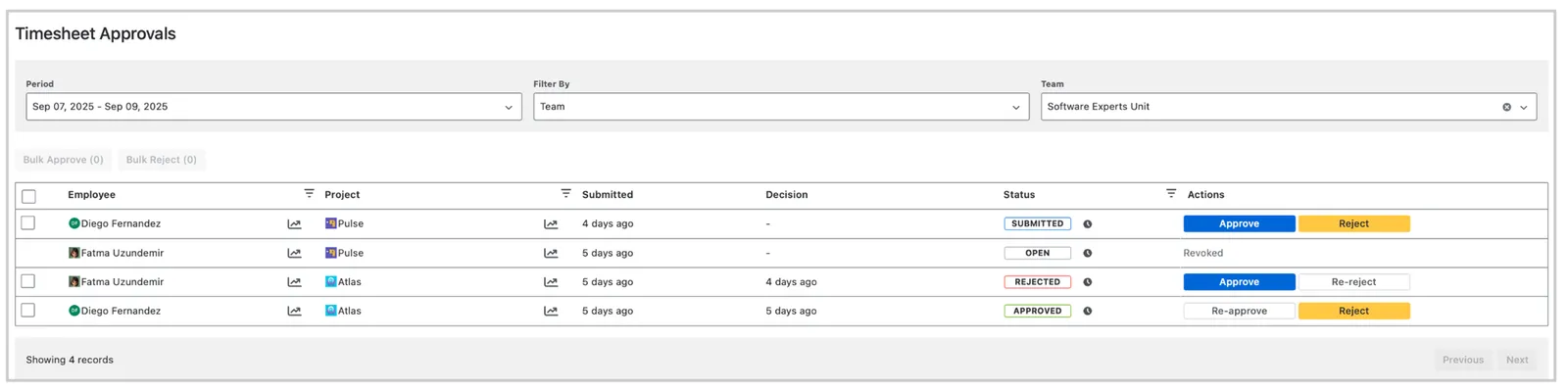
You’ll find it under Apps → WorklogPRO → Approvals in the Jira sidebar:

The flow has two sides:
- Users submit their timesheet for a period from the Your Work page.
- Approvers review on the Timesheet Approvals page, approving or rejecting each submitted project.

The six statuses, and why the “partial” ones matter
Because approval happens per project, a person’s period rolls up into one of six statuses, so you can always see exactly how far sign-off has progressed:
| Status | Meaning |
|---|---|
| Open | Not yet submitted (or submitted and then revoked). |
| Submit | All projects in the period have been submitted. |
| Partial Submit | Some projects are submitted; others are still open. |
| Partial Approved | Some projects are approved; others are still open or submitted. |
| Approved | Every project in the period is approved. |
| Rejected | At least one project in the period was rejected. |
Those two Partial states are the difference between “we think the month is done” and actually knowing it isn’t. A period that reads Partial Approved is a clear, honest signal: don’t bill yet: something is still waiting on sign-off.
Set it up once (for admins)
Approvals are governed, not free-for-all, so an administrator configures three things first:
- Approval permissions: which project roles are allowed to approve worklogs.
- User groups: which groups of users are required to submit timesheets for approval.
- Timesheet periods: the submission windows (e.g. weekly or monthly) that approvals are measured against.
Until that’s in place, the submit button on Your Work stays disabled, a deliberate guardrail so nobody submits into a void.
Approvers: bulk actions and where you work
Reviewing a whole team one row at a time would defeat the purpose, so the Timesheet Approvals page is built for volume:
- Filter by Period, Team, and project to focus on exactly what you’re closing.
- Approve or Reject any individual project, or use Bulk Approve / Bulk Reject to clear a whole period at once.
- Changed your mind? Re-approve or Re-reject to revise a decision.
There’s a second entry point, too: the Reports page gives an approver a detailed view of a user’s worklogs and lets them approve multiple projects for that user in a single action, handy when you want to see the actual work before you sign off on it.
Now your reports are actually trustworthy
Here’s the payoff. Once a period is Approved, the hours behind your timesheets (and the Billable, Cost, and Profit numbers derived from them) aren’t just logged. They’re confirmed.
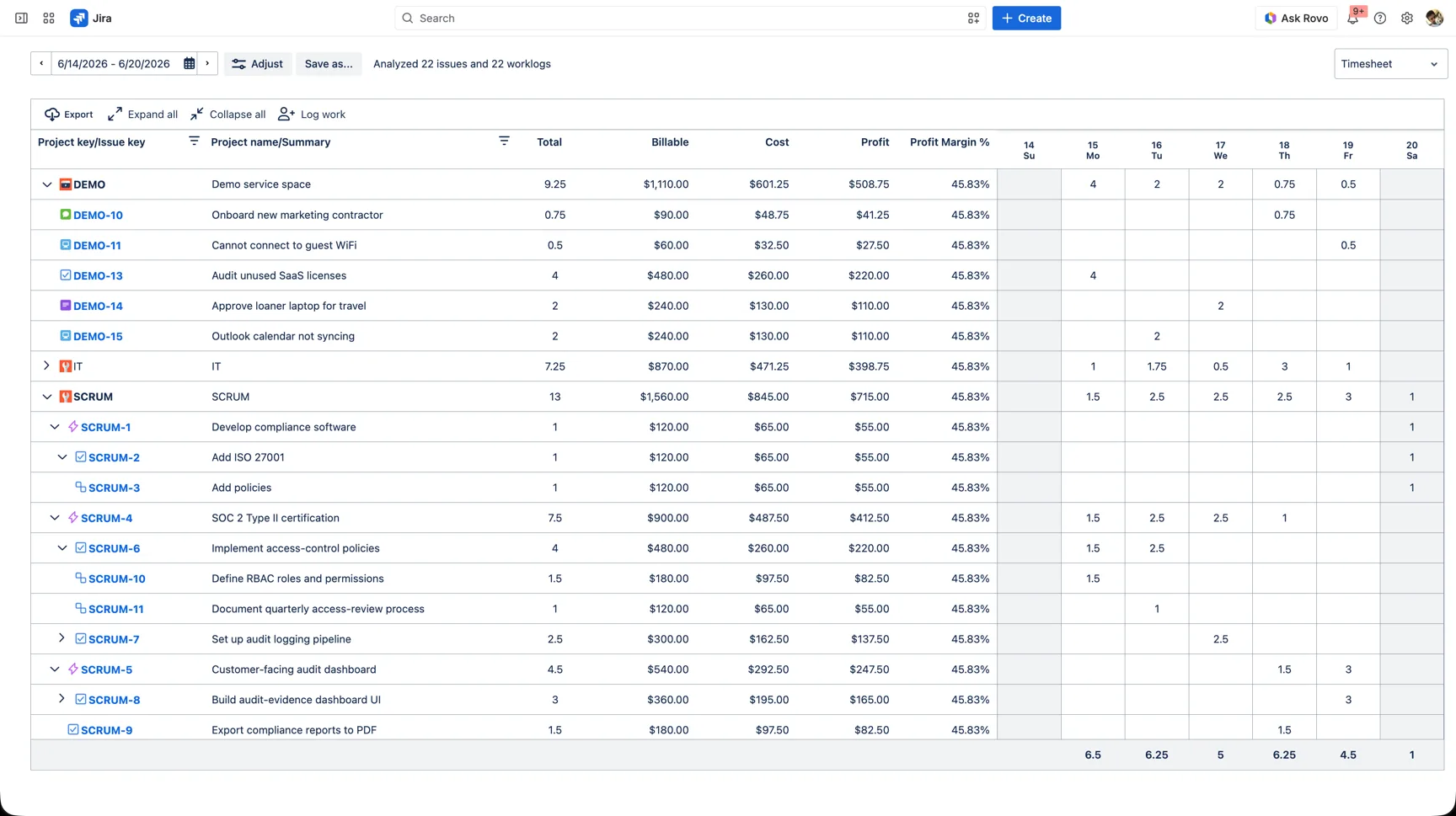
That’s the whole point of approval: the invoice you send, the report you present, and the audit trail you keep all rest on time that someone with authority has explicitly accepted.
So, when is logged time ready to trust?
A quick checklist. Logged time is ready to trust when:
- It falls inside a defined timesheet period.
- The person who did the work has submitted it.
- An authorized approver has approved it: the period reads Approved, not Open or Partial.
Until all three are true, treat the number as provisional. After they are, bill it, report it, and close the books with confidence.
Try it on your own Jira. WorklogPRO is on the Atlassian Marketplace with a free trial. Open Apps → WorklogPRO → Approvals to set up periods and start turning logged time into trusted time.
Setup details live in the WorklogPRO documentation.
New here? Start with our guide to worklog reports that actually help. Approvals are what make those reports safe to act on. It’s all part of our Jira time tracking guide: plan, bill, and scale smarter.