Guides
Jira Time Tracking Guide: Plan, Bill, and Scale Smarter
Most teams don’t discover they mis-planned until it’s too late to fix: the sprint slips, the project runs over budget, or the invoice goes out short. The information that would have warned them was there all along, locked inside worklogs nobody could turn into a picture.
Good time tracking isn’t surveillance. It’s visibility: the ability to see where effort actually went, so you can plan realistically, bill accurately, and grow without burning people out. This guide walks through all three with WorklogPRO, organized around the three jobs time tracking has to do: plan, bill, and scale.
Why time tracking matters
Logging hours feels like overhead until you compare planned vs. actual, and then it starts paying for itself. That comparison is where the useful signals live:
- Planning: which tasks were consistently underestimated, and which were padded.
- Billing: exactly how many hours a client should be invoiced for.
- Profitability: whether a project earned more than it cost to deliver.
- People: who’s overloaded. If someone logs heavy overtime week after week, that’s not productivity; it’s risk.
None of that requires a stopwatch culture. It requires worklogs you can actually read.
Where native Jira stops
Jira’s built-in time tracking is a fine starting point. An admin enables it, users get the Log Work action on an issue, and remaining estimates update as hours go in. Company-managed projects even offer a basic Time Tracking report comparing estimates to actuals.
The wall comes when you need to work across issues and projects: native Jira has no cross-project timesheets, no way to slice time by client or activity, no cost or billing layer, and no approval step. That’s the gap WorklogPRO fills, and it’s why we wrote a full walkthrough of worklog reports that actually help. Here, we’ll focus on the bigger arc: plan, bill, scale.
Plan: see capacity and reality, side by side
Planning improves the moment you can compare what you expected to what happened, at the level of a person, a day, or a sprint.
Capture time without friction. WorklogPRO gives people fast ways to log: a built-in timer they can start and stop on an issue, a richer Log Work dialog, and the ability to spread time across a range (daily, or daily-skipping-weekends) for work that ran for days. Less friction means more complete data, and planning is only as good as the data under it.
Set targets with Work Hour Schedules. Define how many hours a day a person is expected to work, and the timesheet color-codes itself: green when the daily target is met, red when logged hours run over the limit. Under- and over-logging jump off the screen without anyone doing arithmetic.
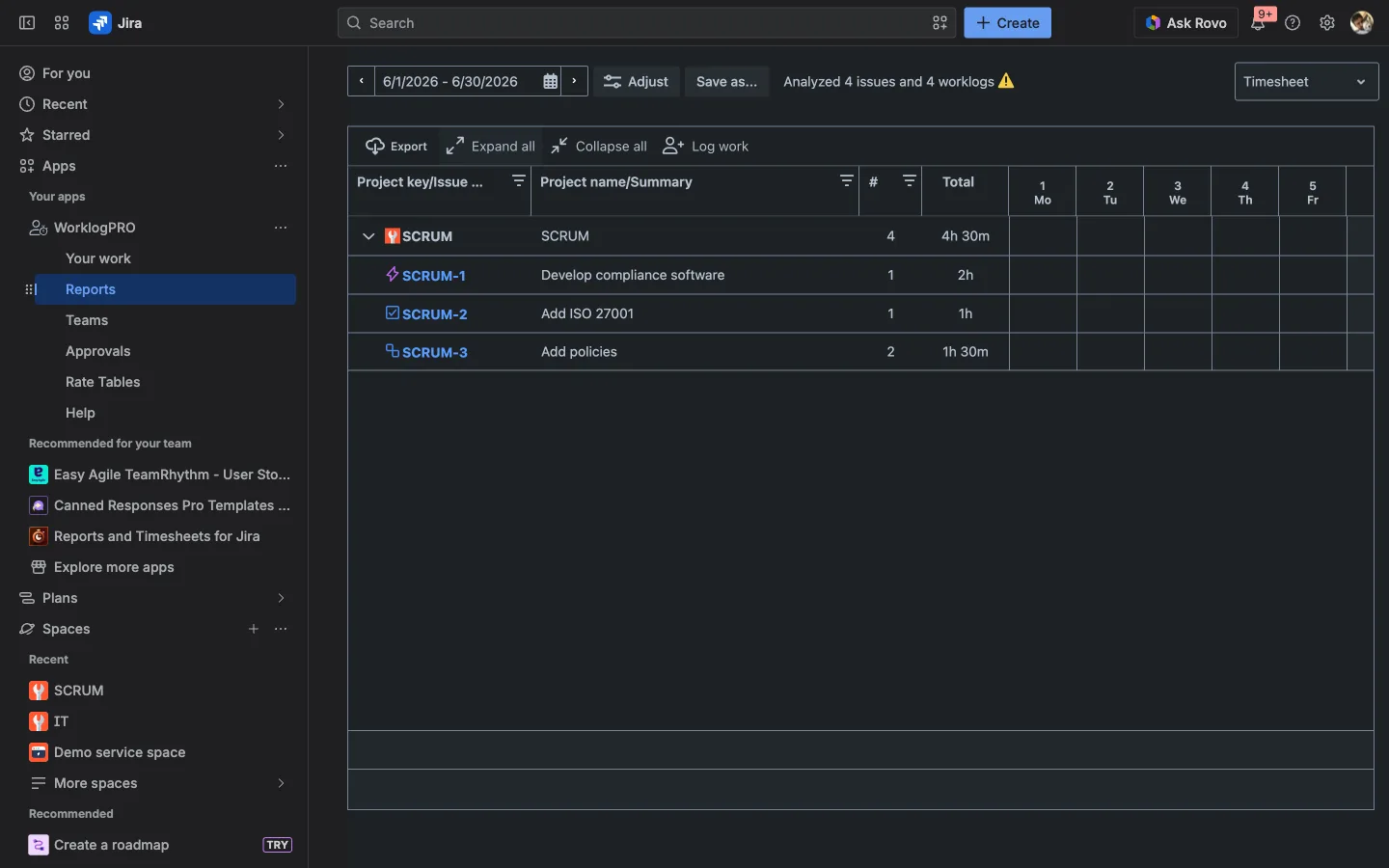
Track overtime as a signal, not an afterthought. Because WorklogPRO lets you define your own custom worklog attributes, you can add an Overtime flag (or an Activity type) and then filter and report on it. Persistent overtime stops being invisible and becomes something you can actually manage.
Bill: turn hours into money
Hours are only half the story for any client-billable or budget-conscious team. The other half is what those hours are worth and what they cost.
WorklogPRO adds a financial layer with Rate Tables: a Billable rate (what you charge) and a Cost rate (what an hour costs you). Attach them to a report and it grows money columns next to the hours (Billable, Cost, Profit, and Profit Margin %), all computed automatically.
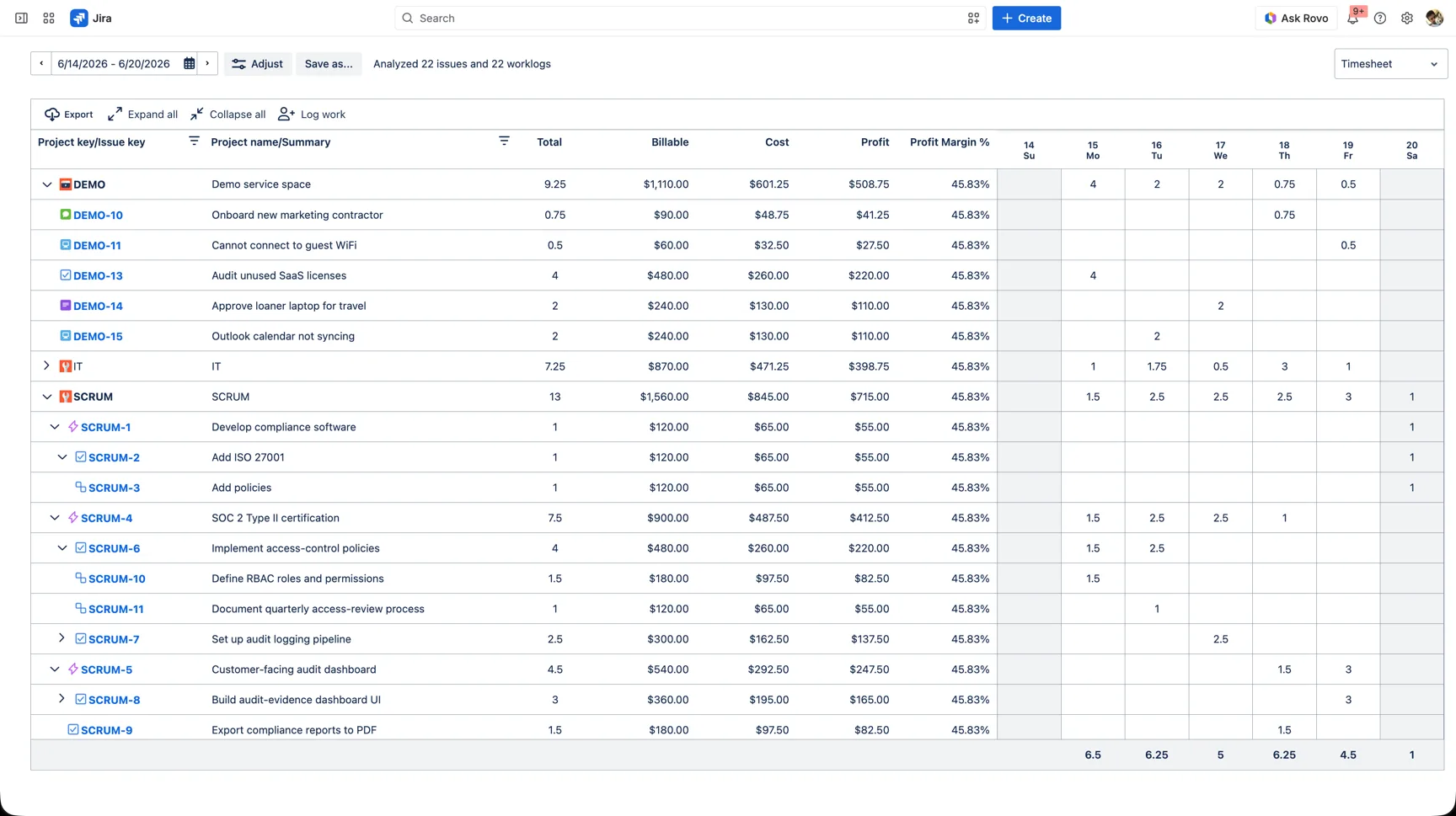
Rate rules can vary the number by user, project, or a custom attribute, so a senior rate, a client-specific rate, or a premium for a particular kind of work all resolve on their own. Mark work billable vs. non-billable with a custom flag, and you can separate revenue-generating time from everything else in a click. The full mechanics are in our guide to Jira cost management with WorklogPRO.
Scale: teams, approval, and shared dashboards
What works for one team has to survive ten. Scaling time tracking is about rolling many people’s hours up cleanly, trusting the result, and putting it where everyone can see it.
Teams. Group users (and Jira groups) into Teams so you can report on combined effort: a whole squad’s timesheet in one view, instead of stitching individuals together by hand.
Approval. At period close, people submit their time and managers approve it (per project, per period), so the numbers behind your reports and invoices are confirmed, not just logged. WorklogPRO’s approval is project-based with clear roll-up statuses; we cover it in how to know when logged time is ready to trust.

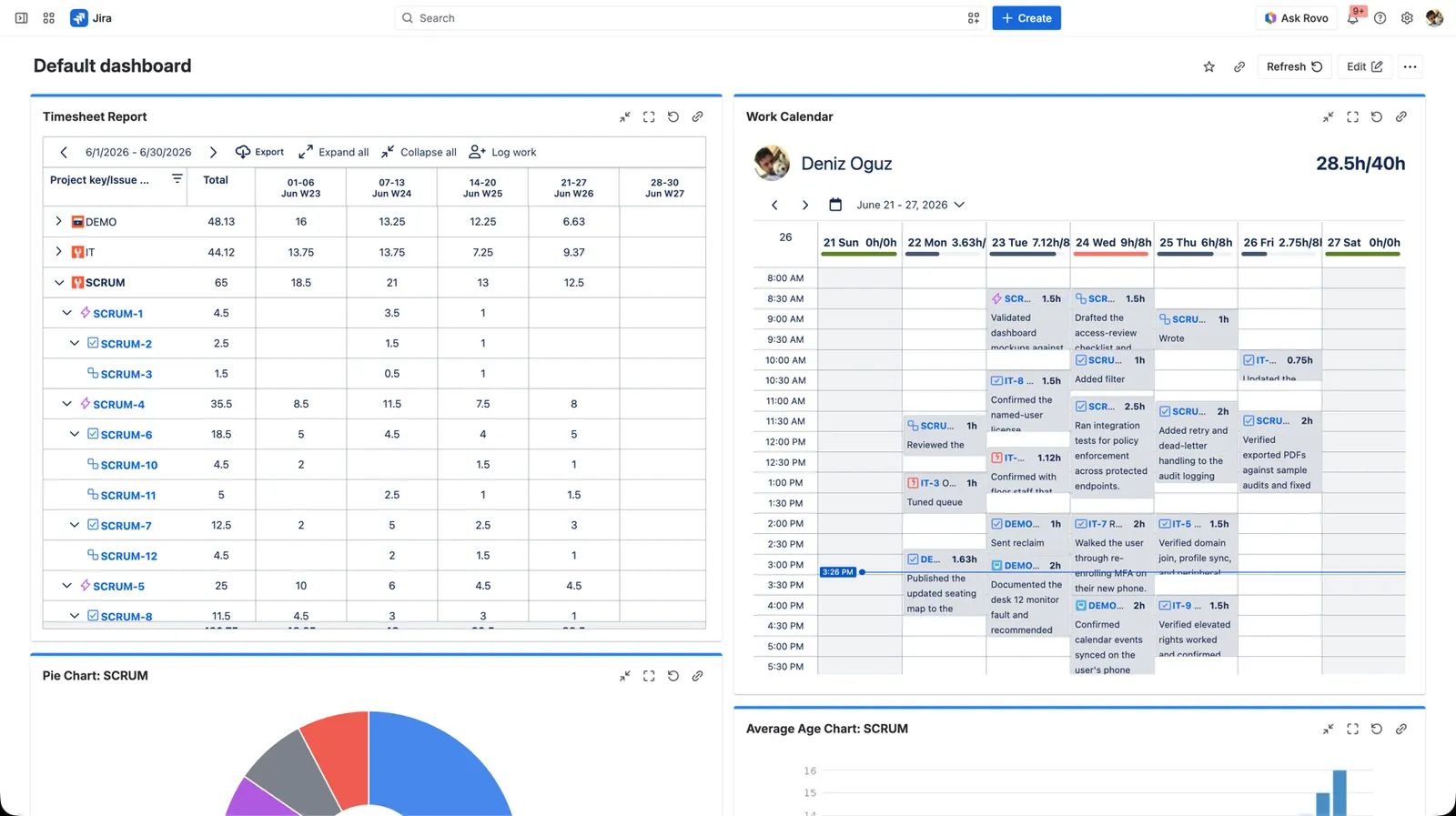
Dashboards. Drop the Timesheet Report and Work Calendar gadgets onto a Jira dashboard so leads and finance see live numbers without opening the app, and export any report to PDF, Excel, or CSV for the people who live in spreadsheets.
From admin chore to strategic leverage
Time tracking earns its keep when it stops being a box people tick and starts answering real questions: Can we take this on? Did that project make money? Who needs help before they burn out?
That’s the whole arc: plan with capacity you can see, bill with numbers you can defend, and scale with approvals and teams that keep it trustworthy as you grow. Logging the time was never the hard part. Turning it into decisions is, and that’s exactly what WorklogPRO is built for.
Try it on your own Jira. WorklogPRO is on the Atlassian Marketplace with a free trial. Open Apps → WorklogPRO and start with a timesheet for last month.
Full feature details are in the WorklogPRO documentation.