Cost tracking
How to Turn Jira Worklogs into Financial Reporting for Finance Teams
Engineering logs its hours in Jira. Finance needs those hours in dollars: cost, revenue, profit, and a trail they can audit at month-end. Between the two sits a spreadsheet that someone rebuilds every close, stapling Jira exports to salary data by hand. It’s slow, it’s error-prone, and nobody fully trusts the result.
The fix is to make the worklogs themselves financial: to attach rates and structure to the time your team already logs, so finance reads cost and revenue straight out of Jira. This guide shows how to do that with WorklogPRO.
What finance actually needs from Jira
A worklog says “2h on SCRUM-6.” Finance needs that translated into answers:
- What did this project / client cost us in labor?
- How much is billable, and against which invoice?
- Did it make a profit, and at what margin?
- Can I trace any number back to the individual entries behind it, and trust them?
Native Jira answers none of these. WorklogPRO answers all four, in four steps.
Step 1: Put rates on the hours
Finance reporting starts the moment an hour has a price. WorklogPRO’s Rate Tables give every worklog two numbers: a cost rate (what the hour costs you) and a billable rate (what you charge for it).
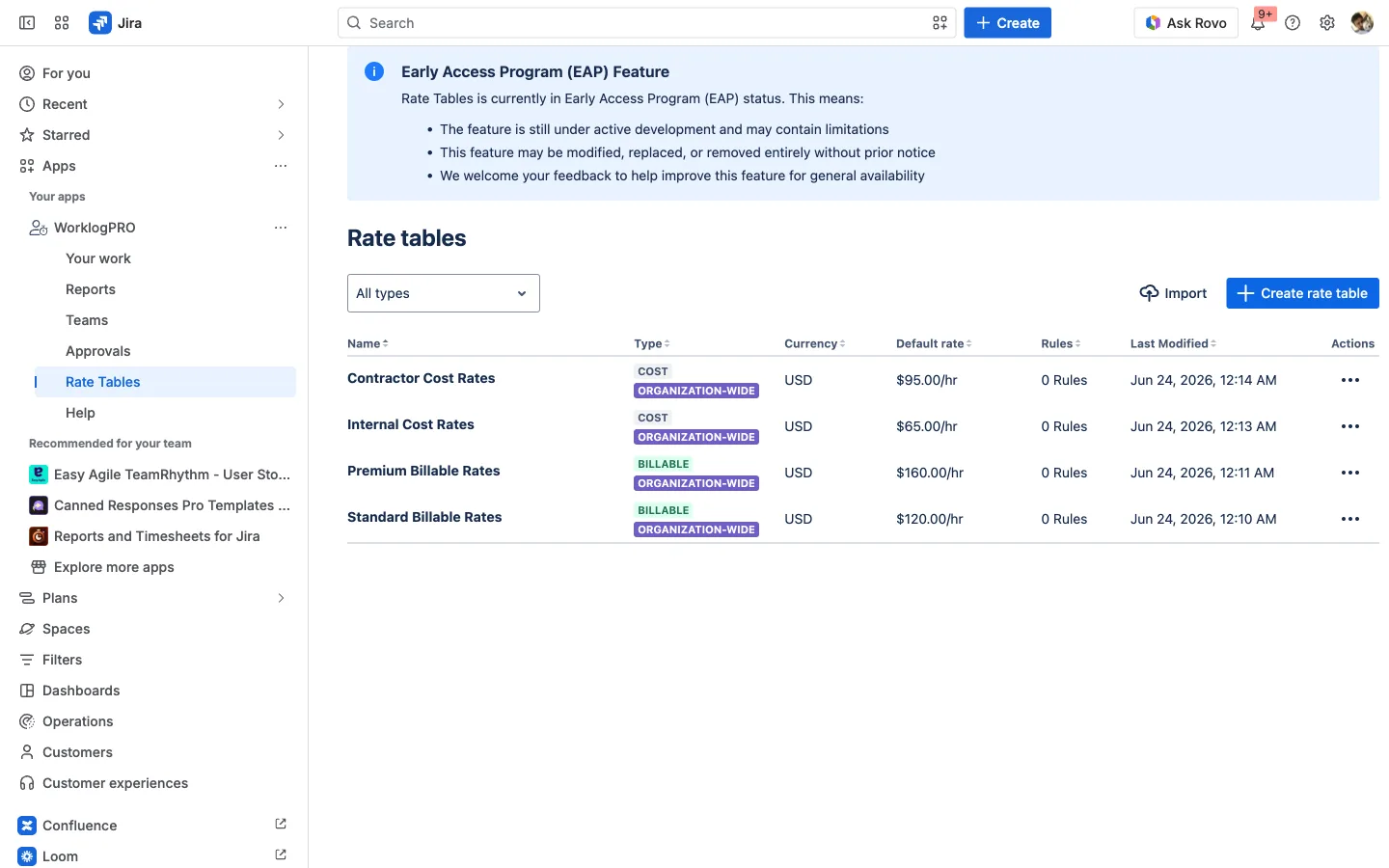
Rates aren’t one-size-fits-all, and finance knows it. Rules let a rate depend on the user, the project, or a custom worklog attribute, and each rule can carry a start and end date, so a mid-year rate change is applied to the right periods without rewriting history. The full mechanics are in our guide to Jira cost management with WorklogPRO.
Step 2: Read cost, revenue, and profit by project or client
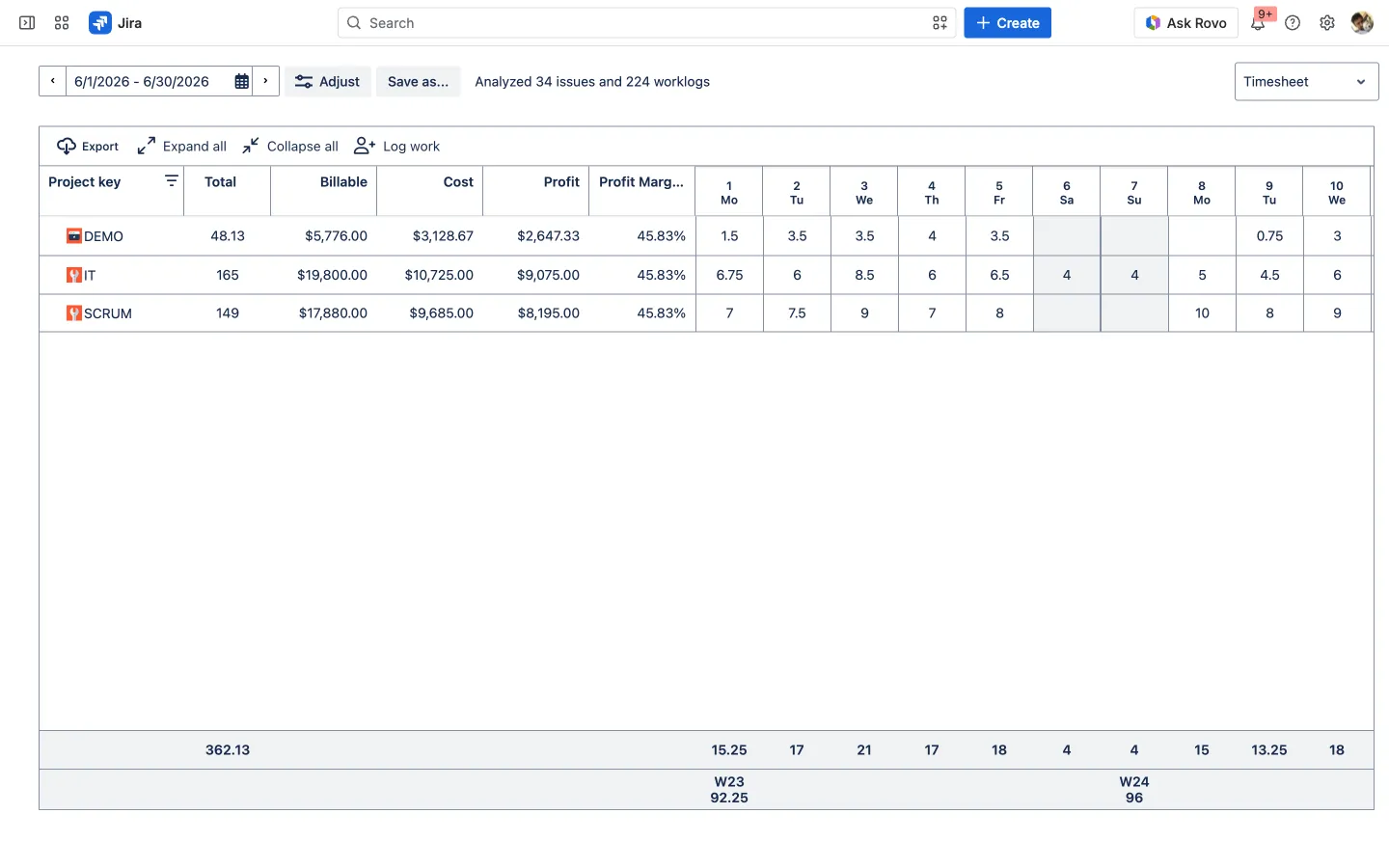
With rates attached, any report grows the columns finance cares about, Billable, Cost, Profit, and Profit Margin %, beside the hours. Group by project, client, or epic and profitability reads off the page.
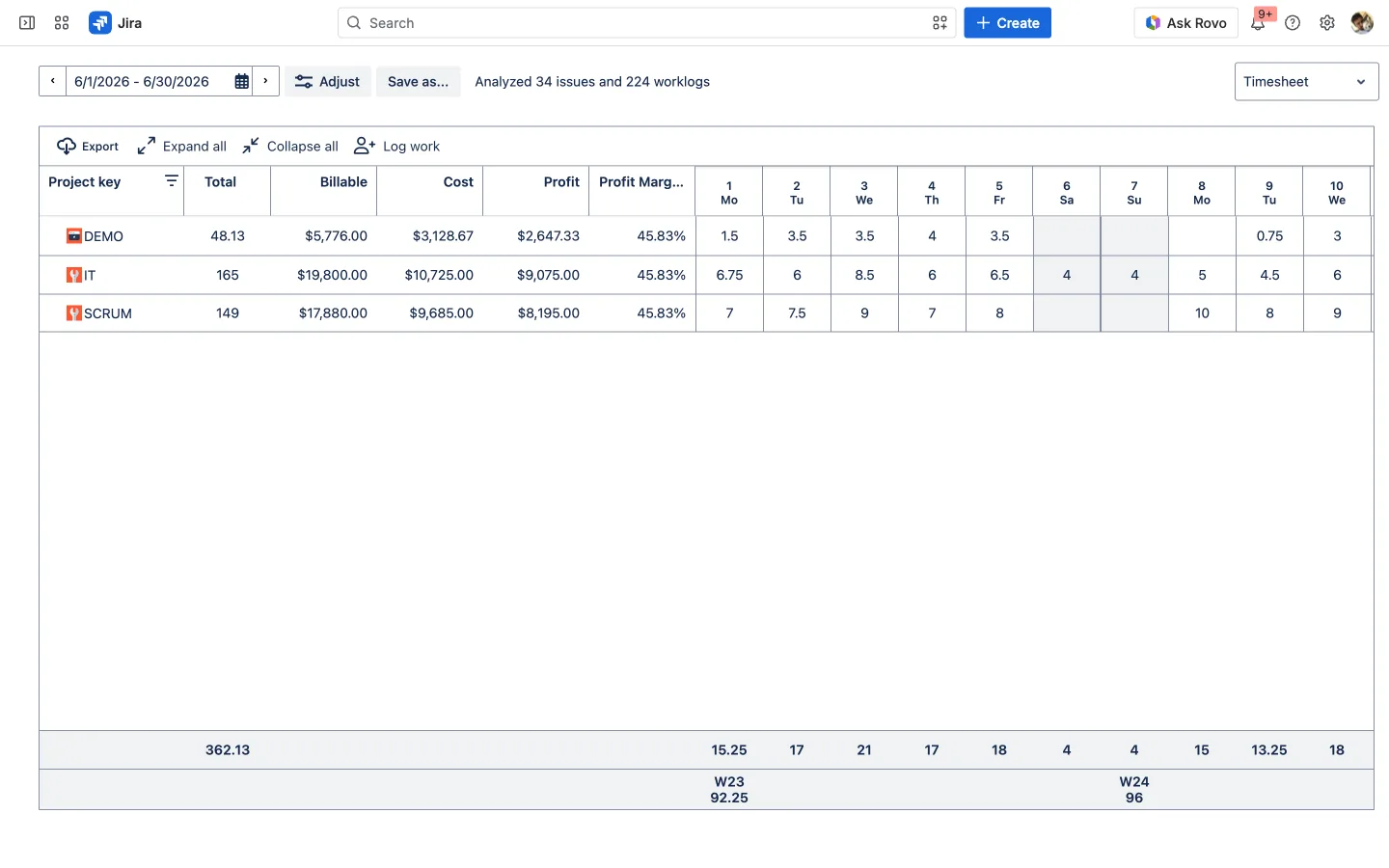
This is the report that replaces the month-end reconciliation: it’s already combined, already current, and it updates itself as more time is logged.
Step 3: Keep a line-item ledger you can audit
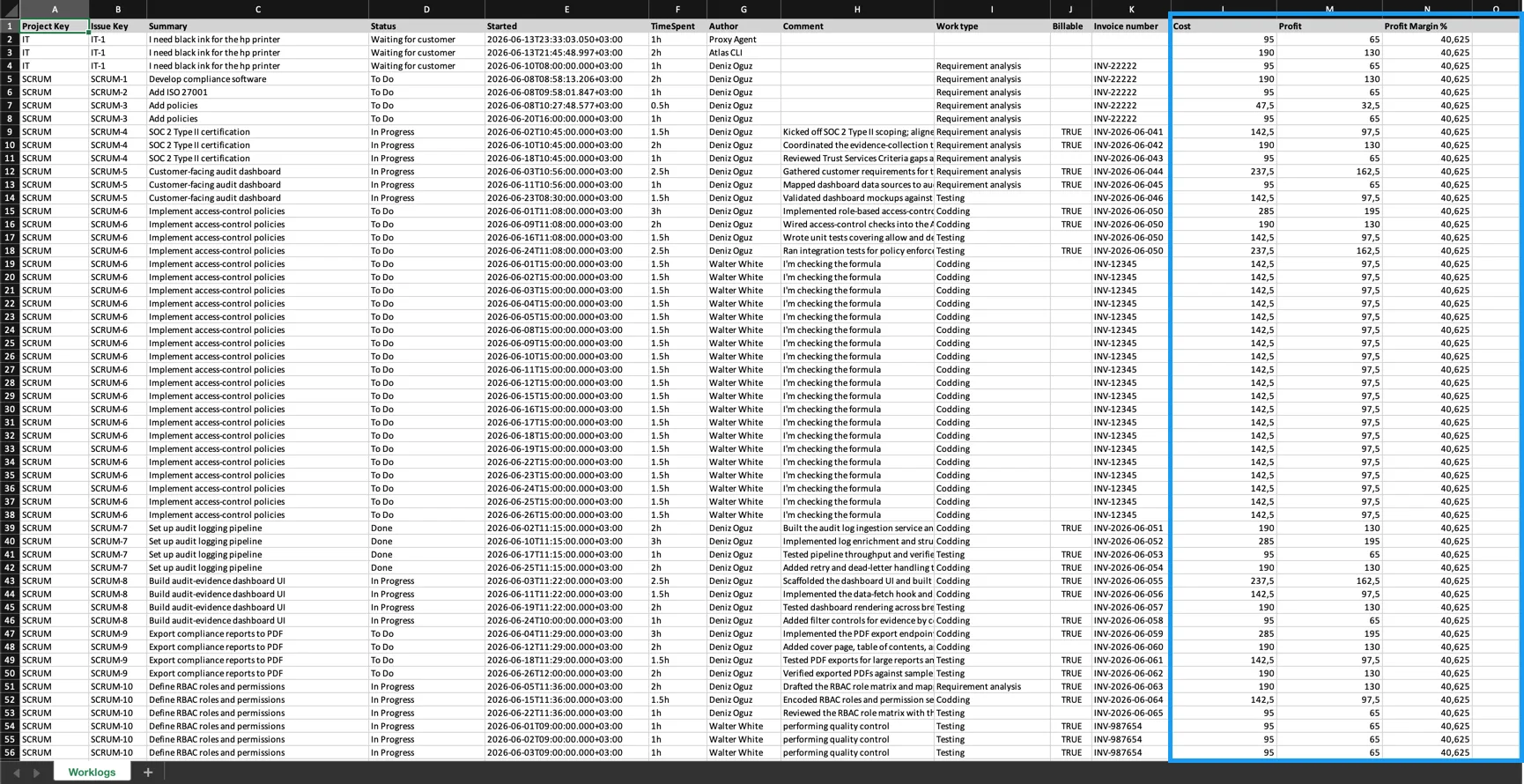
Summary numbers are only trusted if you can drill into them. Click into any total and WorklogPRO opens the worklog ledger: every individual entry with its issue, author, date, and hours, and its own Billable, Cost, Profit, and Profit Margin, the rate tables applied line by line. Capture an Invoice number as a worklog attribute and each hour is tied to the invoice it was billed on, too.
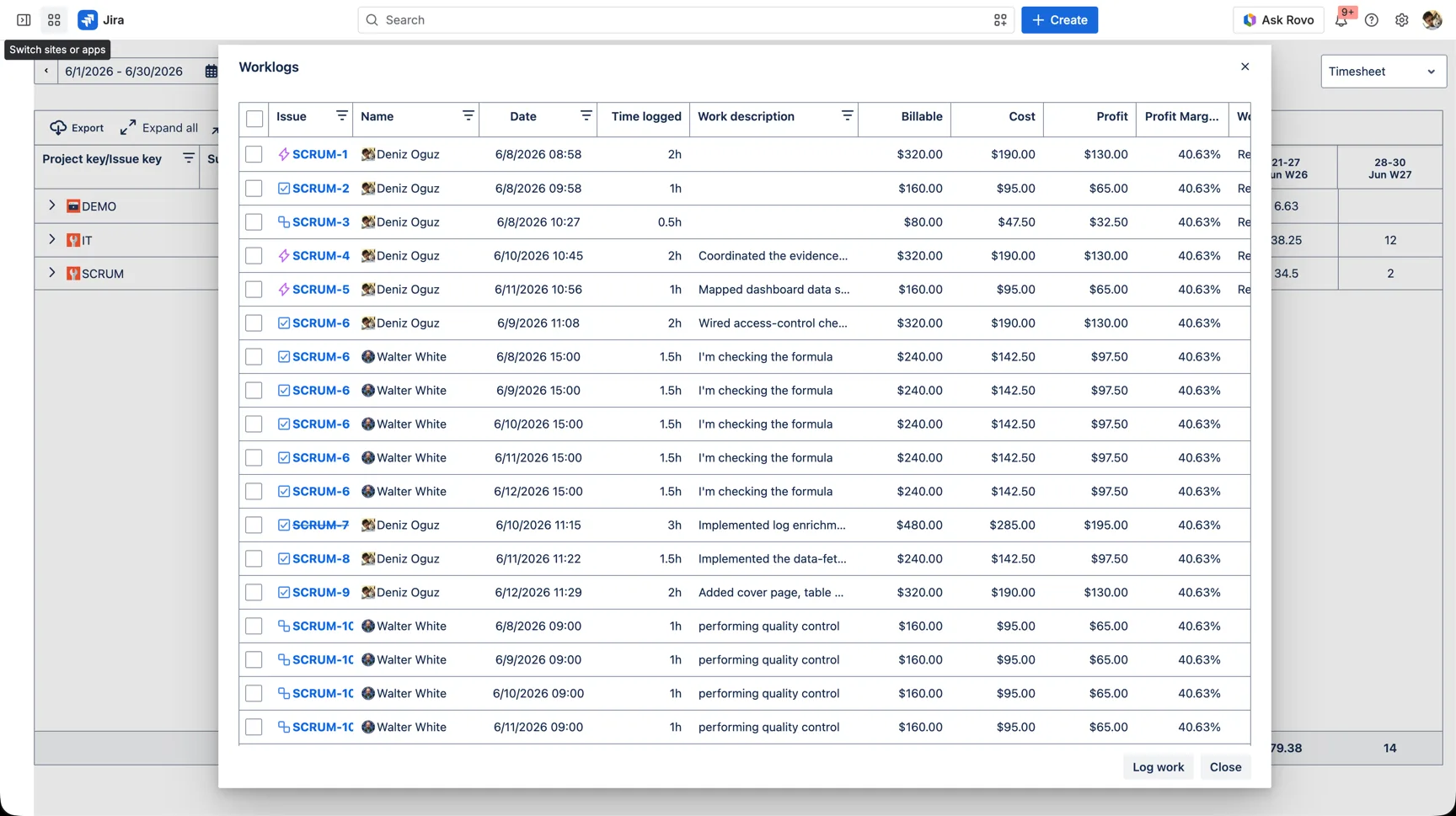
When an auditor asks “what’s behind this $36,000?”, you don’t reconstruct it. You drill the ledger straight to the exact worklogs behind it.
Step 4: Export for the close, on numbers you can trust
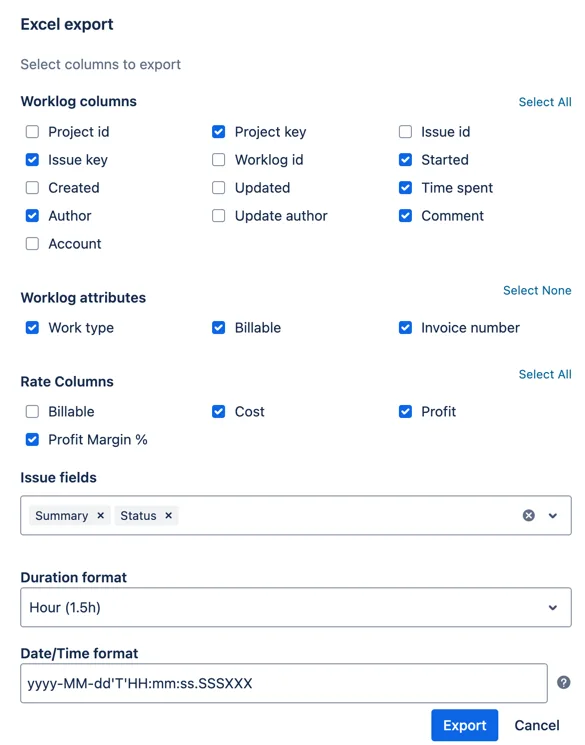
Finance lives partly outside Jira, so every report exports to PDF, Excel, or CSV, and the Excel export lets you pick exactly which columns to include: worklog fields, your attributes, and the rate columns (Billable, Cost, Profit, Profit Margin). Hand the close, the invoice backup, or the audit pack to whoever needs it, with the latest worklogs baked in.
And before those numbers go out the door, run the period through timesheet approval. Once a manager has signed off, the hours behind your cost and revenue aren’t just logged: they’re confirmed, which is exactly the bar finance needs before it bills a client or closes the books.
From worklogs to a finance-ready close
Four steps turn raw worklogs into reporting finance can act on: rate the hours, read cost and profit by project, keep an auditable ledger, and export approved numbers for the close. No spreadsheet rebuild, no stale exports, just the labor economics of your work, current and traceable, straight out of Jira.
Try it on your own Jira. WorklogPRO is on the Atlassian Marketplace with a free trial. Open Apps → WorklogPRO → Rate Tables, set your rates, and run your first cost-and-profit report.
This article is part of our Jira time tracking guide: plan, bill, and scale smarter.