Guides
Time Tracking in Jira: The Ultimate Checklist for 2026
Time tracking looks simple (log some hours on an issue), but in practice it touches your configuration, your permissions, your team’s habits, your reporting, and your compliance posture all at once. Get one of those wrong and the data quietly stops being trustworthy.
So here’s a checklist, not a how-to. Run through it with your team, tick what you’ve got, and flag the gaps. Where a line maps to something WorklogPRO handles, we’ve said so, but most of this is good practice whatever you use.
1. Configuration
Get the foundations right before anyone logs an hour.
- Time tracking is enabled in Jira, with a consistent unit and display format (hours vs. days) agreed across teams.
- Working hours per day are defined, so “a day” means the same number everywhere.
- A holiday / non-working-day schedule is in place so capacity math accounts for time off.
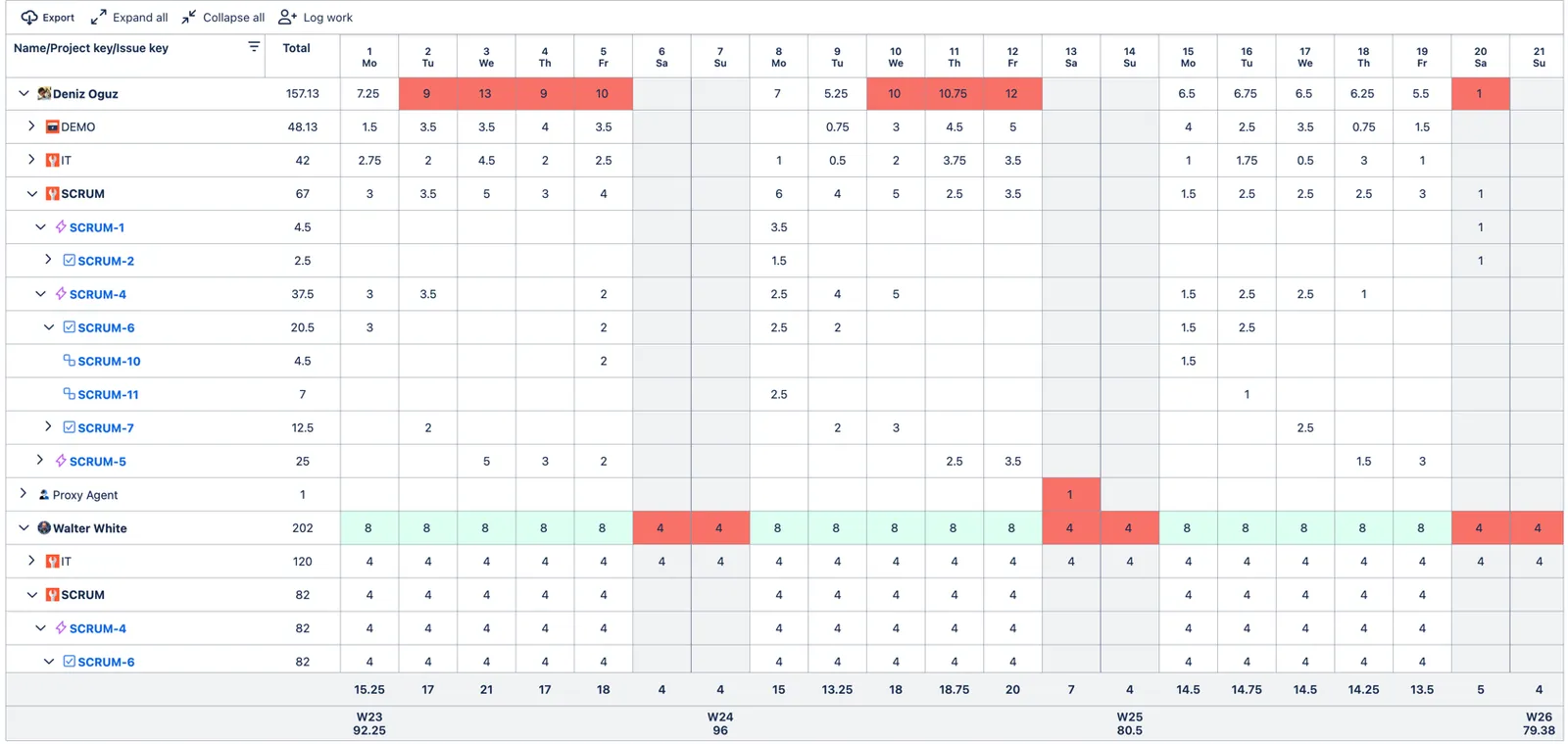
WorklogPRO handles the last two with a Work Hours Schema (daily targets) and a Holidays Schema, the basis for capacity and the timesheet’s green/red color-coding.

2. Permissions and roles
Decide who can do what, before someone edits a worklog, approves their own time, or sees costs they shouldn’t.
- Who can log work is defined, and who, if anyone, can log work for others.
- Editing and deleting other people’s worklogs is restricted to the right roles.
- Whose worklogs each person can see is scoped, not everyone sees everyone.
- Who approves timesheets, and who must submit them, is set per project.
- Who can log into a closed period (finance/PMO corrections) is limited.
- Org-wide rate tables and cost visibility are governed.
- WorklogPRO administration is restricted to Jira admins.
WorklogPRO plugs into Jira’s own permission system rather than bolting on a separate one. At the project level it adds a full set of permissions you grant to users, groups, or project roles in your permission scheme: Can approve timesheets, Requires timesheet approval, Log work for others, View all worklogs, View private issues, and Excluded from period checks. (In team-managed projects the same permissions live under a role’s App permissions.)
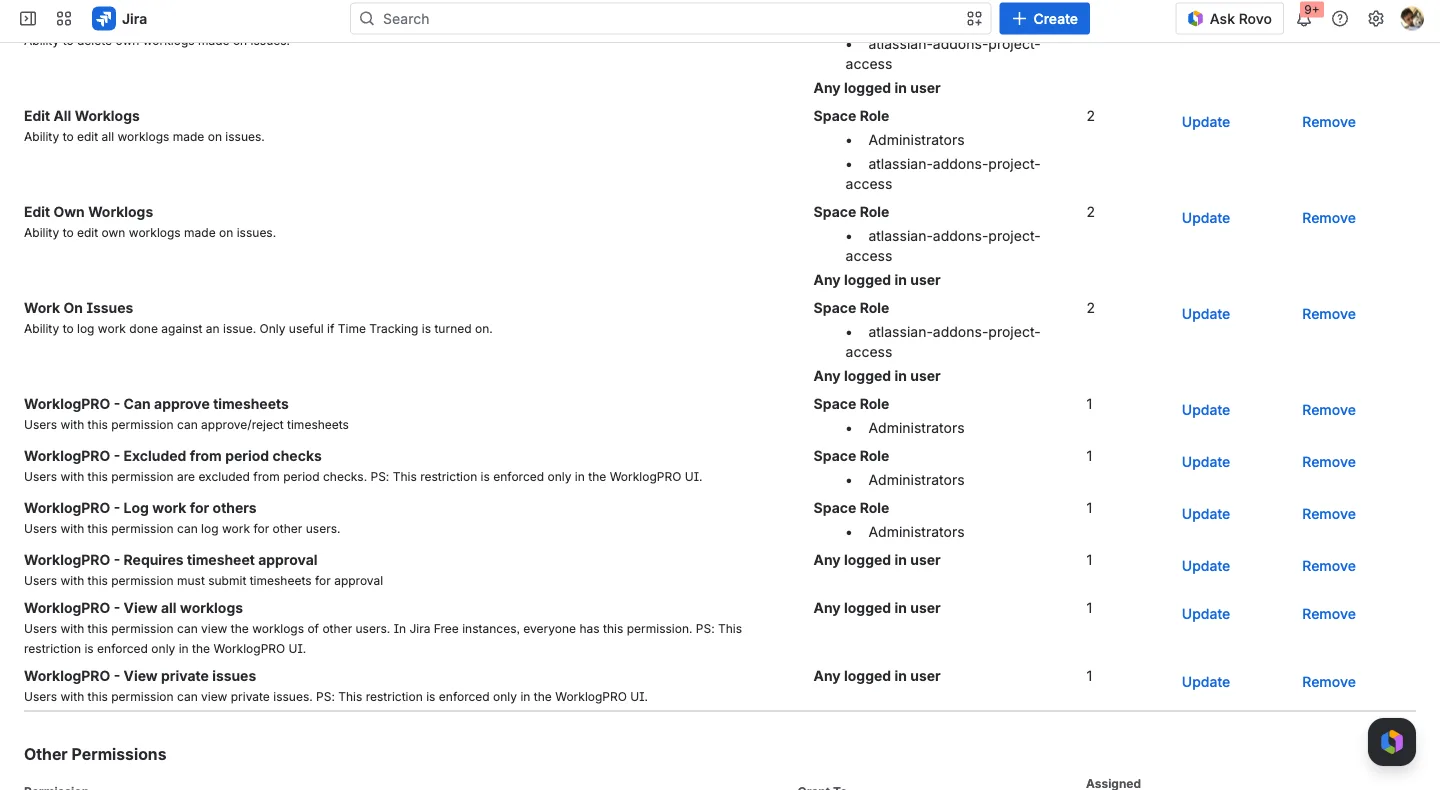
At the global level it adds Use WorklogPRO, Share Rate Tables, and Share Teams, while configuring WorklogPRO itself (periods, attributes, schemas, rate tables) requires Jira administrator privilege. So approval, cost visibility, and setup are each in the right hands, not a free-for-all.
3. Logging rules
The habits that decide whether your data is worth reading.
- Everyone knows when to log (daily is best) and against which issue.
- Work descriptions are meaningful, not “worked on stuff.”
- Overtime is captured, not hidden.
- Periods are closed on a schedule so the past stops moving.
- The rules above are enforced at entry, not just written in a wiki.
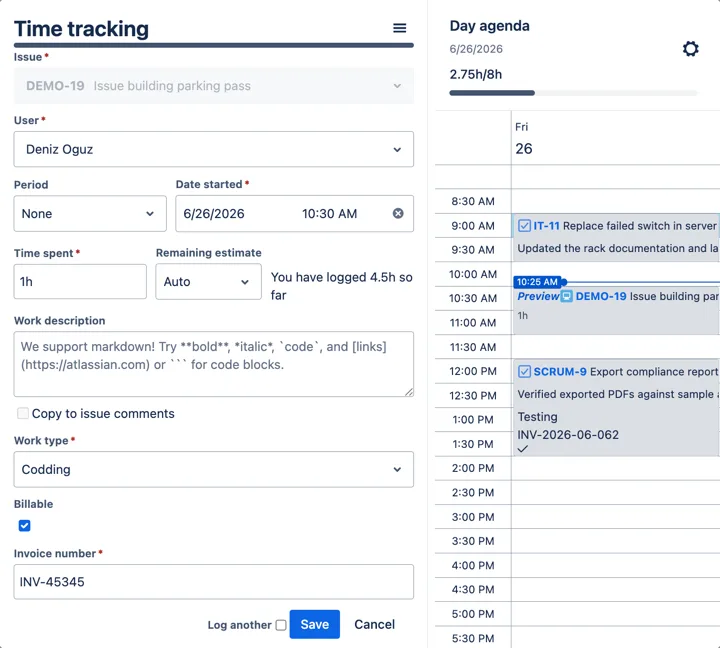
WorklogPRO’s Log Work dialog (with optional timers) makes daily logging quick, supports rich work descriptions, and lets you capture overtime as a custom attribute. Define timesheet periods to formalise the close.
Enforce the rules with verification scripts
Agreements drift; checks don’t. WorklogPRO’s Scripts feature lets an admin attach verification scripts that run when a worklog is created or edited. Each is a short expression that must evaluate to true for the save to go through; when it doesn’t, the error message you defined is shown and the worklog is blocked.
A few verifications teams actually use:
- Require a work description: no more “worked on stuff.”
- Require an Invoice number when the work is Billable.
- Log only in 15-minute increments.
- Only the assignee can log work on an issue.
- Allow logging only in certain statuses (e.g. In Progress, Testing), and never on Done.
- Allow same-day logging only, so timesheets can’t drift into the past.
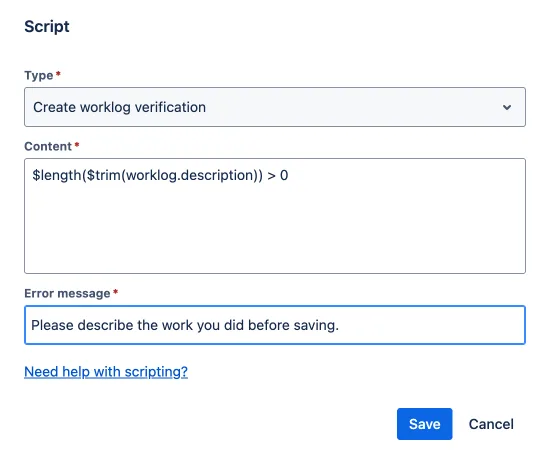
One honest caveat: scripts validate inside WorklogPRO’s Log Work UI, so they’re a strong guardrail rather than a hard server-side lock. Pair them with the permissions above for defence in depth.
4. Categorise your time
Raw hours can’t answer business questions; categorised hours can.
- Time is split billable vs. non-billable.
- You can tell apart types of work (development, testing, meetings, R&D…).
- Any extra metric you report on is captured at logging time, not reconstructed later.
This is exactly what WorklogPRO’s custom worklog attributes are for: a Billable flag, a Work type dropdown, an Invoice number, each available later for grouping, charting, and even rate rules.
5. Reporting and dashboards
If you can’t see the data, you won’t act on it.
- You can build timesheets across projects and people, not just per issue.
- You can slice by project, person, client, or activity on demand.
- Reports filter by JQL for anything precise.
- Numbers reach the people who live in dashboards and spreadsheets (export).
WorklogPRO gives you one report engine with Timesheet, Pivot, Chart, and Worklog views, JQL filtering, dashboard gadgets, and PDF / Excel / CSV export. See the six reports every PM needs and worklog reports that actually help.
6. Data quality and capacity
Trustworthy data is data you’ve checked.
- You review for missing worklogs each week or sprint.
- Over- and under-logging is easy to spot.
- Sustained overtime is monitored as a risk, not celebrated.
WorklogPRO’s timesheet color-codes logged-vs-target (green met, red over), and the Work Calendar shows each person’s hours against capacity at a glance, so gaps and overload surface without a manual audit.
7. Trust: approval and sign-off
Logged time isn’t trusted time until someone signs off.
- Timesheets are submitted and approved for each period.
- Approved hours are the ones you bill and report from.
- Approval is enabled only where you need it, per project, with the right approvers.
WorklogPRO’s Timesheet Approvals make this a real workflow: project-based submit → approve/reject, per period. And because approval is project-level, driven by the per-project Requires timesheet approval and Can approve timesheets permissions, you get real flexibility: switch it on only for the projects that need it (client-billable work, say), leave internal projects untouched, and set different approvers per project. Because Requires timesheet approval is granted per project, you can specify which users submit timesheets for which projects, control right down to the individual, not just whole-project on or off. See how to know when logged time is ready to trust.

8. Compliance and privacy
Where your time data lives matters as much as what’s in it.
- Access to worklog and cost data is controlled.
- You know where the data is stored (data residency).
- There’s an audit trail for changes and approvals.
WorklogPRO Cloud runs on Atlassian Forge, so your data stays inside Atlassian’s infrastructure rather than a third-party server, and approvals give you a sign-off trail per period. Its documentation covers GDPR, HIPAA, and data residency explicitly.
Run it with your team
Reliable time tracking isn’t one setting: it’s configuration, habits, categories, reporting, checks, sign-off, and governance working together. Print this, run it in a team session, and fix the lines you can’t tick. Most are good practice on any setup; the rest, WorklogPRO handles directly.
Try it on your own Jira. WorklogPRO is on the Atlassian Marketplace with a free trial: Work Hours Schemas, attributes, reporting, and approvals included.
This article is part of our Jira time tracking guide: plan, bill, and scale smarter.